

See your Blood Glucose Levels on your Windows PCConnects directly to Dexcom G7 and FreeStyle Libre, plus Dexcom G6 and other sensors via Nightscout
Your blood glucose, always in sight — without unlocking your phone every ten minutes.
Glucose Widget is a tiny desktop app for Windows 10 and 11 — an always-on-top widget that shows your live CGM reading, trend arrow and trend chart right on your PC screen. Readable at a glance, colour-coded, with optional pulsing alerts when you drift out of range.
- Monitor 1, 2 or 3 sensors at once — ideal when more than one person in the house wears a CGM
- Connects directly to Dexcom for G7 sensors — no extra software needed
- Connects directly to FreeStyle Libre 2, 2 Plus, 3 and 3 Plus through LibreLinkUp — no extra software needed
- Dexcom G6 and other sensors supported via Nightscout
Install free from the Microsoft Store · try the full app for 14 days · then US$5/year if you love it
No card needed to try · Windows 10 & 11 · Works with Dexcom G7 & FreeStyle Libre · Cancel anytime.
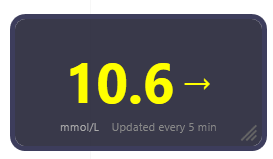
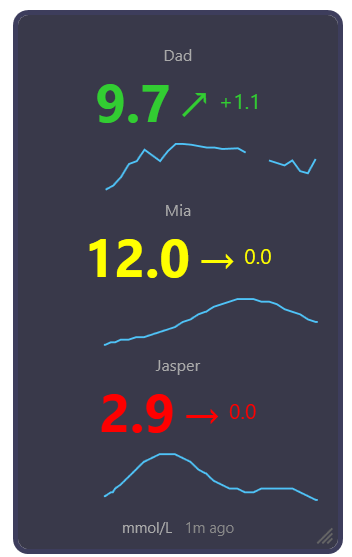
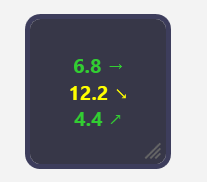
Installed from the Microsoft Store — signed and verified
Glucose Widget is distributed through the Microsoft Store, so Microsoft checks it and code-signs it before it ever reaches your PC. That matters for an app you sign into with your Dexcom or LibreLinkUp account.
No security warnings
One click from the Store and it’s installed. You are never asked to click past “Windows protected your PC”.
No admin rights
Nothing to unzip, no installer to run, nothing to approve. It just appears in your Start menu.
Updates like any other app
New versions arrive through the Microsoft Store automatically. Nothing to check or re-download.
A Dexcom & Libre desktop app built for people who live with the numbers
Connects directly to Dexcom G7 and FreeStyle Libre 2, 2 Plus, 3 and 3 Plus — your live reading, right on your Windows desktop.
Neither Dexcom nor Abbott makes a live glucose app for Windows — their PC tools are for reports, not your real-time number. Glucose Widget fills that gap: it’s a proper Windows desktop app that puts your live Dexcom G7 or FreeStyle Libre reading on your PC, where you actually spend your day.
If you’re a Type 1 diabetic who spends long hours at a computer, a parent remotely monitoring a child on Dexcom G7 or FreeStyle Libre, or anyone who’s tired of picking up their phone every ten minutes just to check a number — this widget was built for you.
Type 1 Diabetics at a PC
Parents & Carers
Dexcom G7 & Libre users
What the Windows glucose widget does
Place the widget anywhere on your screen
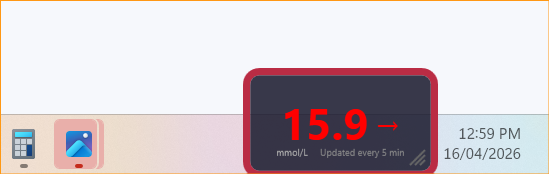
Red edge pulsing alerts you to highs and lows
Always on top
Live Dexcom G7 & Libre readings
mmol/L or mg/dL
Colour-coded at a glance
Pulsing border alerts
Trend arrows
Your thresholds, your call
Resize & restyle
Private by design
See the Dexcom & Libre widget on your Windows desktop
Compact on the outside. Genuinely customisable on the inside.
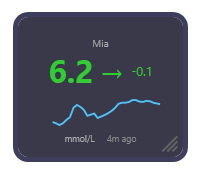
The widget itself
Sensor name, current reading, trend arrow, change since the last reading, and a sparkline of the recent trend.
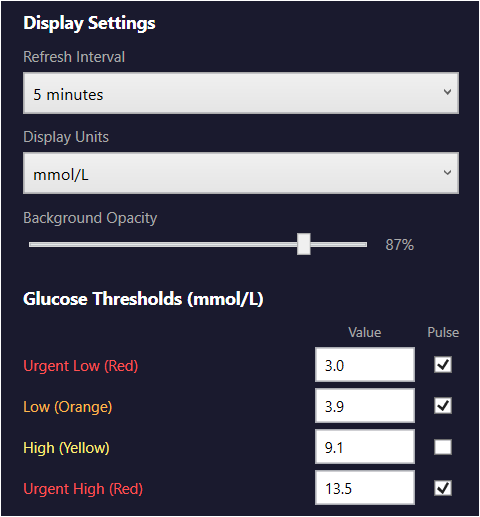
Display settings
Refresh interval, units, opacity slider, threshold values, pulse toggles.
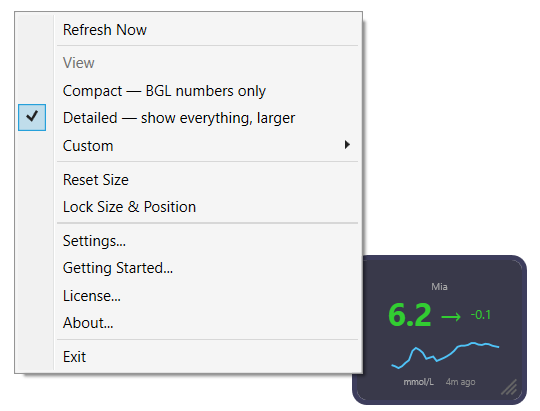
The right-click menu
Switch between Compact, Detailed and Custom views, reset or lock the size, and reach Settings and your licence.
How to see your Dexcom or Libre on your PC in 60 seconds
Install
Install free from the Microsoft Store — a signed, verified app with a 14-day free trial. No admin rights needed.
Sign in
Enter your Dexcom or LibreLinkUp login, or your Nightscout details. Encrypted with DPAPI.
Subscribe
Love it? Subscribe for US$5/year. Your licence key is emailed instantly — paste it into Settings to keep going.
Glance
Drag it into the corner of your screen and get on with your day.
Before you start — which account to use
Sign in to Glucose Widget with the primary Dexcom account — the one the sensor is set up under (the phone running the Dexcom G7 app). Do not use a follower account — follower logins can’t pull readings, so the widget won’t show anything.
Glucose Widget reads your levels through Dexcom’s official Share service, which only releases data when that primary account has Share turned on with at least one follower added. With no follower, no app (including this one) can see your data.
Following your own glucose? Enter your own primary Dexcom login, and add any follower in the Dexcom app (e.g. a family member) to switch sharing on.
A parent following your child? Enter your child’s Dexcom login (their primary account), not your own follower account.
Using FreeStyle Libre? Sign in with a free LibreLinkUp (follower) account — the wearer invites you from their Libre phone app, then you use your LibreLinkUp email and password. Libre sensors paired with an insulin pump, or used only with a Libre reader, can’t share to LibreLinkUp, so they aren’t supported directly.
Glucose Widget pricing — US$5 per year
US$5 per year, per device. No ads, no upsells. Updates and priority support included.
Glucose Widget
One Device- Live Dexcom G7 & Libre readings
- Always-on-top floating widget
- Colour-coded status + pulsing alerts
- Customisable thresholds
- mmol/L & mg/dL
- Free updates
- Support via email
- Cancel anytime
- Windows 10 & 11
Need more than one device? Just subscribe again — each subscription covers one PC.
Need support or have questions?
Dexcom & FreeStyle Libre Windows app — frequently asked questions
Is there a Dexcom app for Windows?
Dexcom doesn’t make a live glucose app for Windows — only the Clarity report uploader. Glucose Widget is an independent Windows desktop app that shows your live Dexcom G7 reading and trend arrow in an always-on-top widget on your PC. Install it free from the Microsoft Store and sign in with your Dexcom account.
How do I see my Dexcom on my computer?
Install Glucose Widget free from the Microsoft Store, sign in with your Dexcom account, and your live Dexcom G7 reading appears in an always-on-top widget on your Windows desktop. There’s no official Dexcom desktop app for live readings, so this is the simplest way to see your glucose on a PC.
Is there a FreeStyle Libre app for Windows?
Abbott doesn’t make a live glucose app for Windows — LibreView is a website for reports, not your real-time number. Glucose Widget is an independent Windows desktop app that shows your live FreeStyle Libre 2, 2 Plus, 3 or 3 Plus reading and trend arrow in an always-on-top widget on your PC, using Abbott’s LibreLinkUp follower service. Install it free from the Microsoft Store.
How do I see my FreeStyle Libre on my computer?
Create a free LibreLinkUp account and have the wearer invite you from their Libre phone app (Connected Apps → LibreLinkUp), then accept the invitation in the LibreLinkUp app. Install Glucose Widget free from the Microsoft Store, choose FreeStyle Libre via LibreLinkUp as the data source in Settings, and enter your LibreLinkUp email and password. Your live reading appears in an always-on-top widget on your Windows desktop.
Which Dexcom account do I use — and do I need Dexcom Share on?
Sign in with your primary Dexcom account — the one the sensor is set up under (the phone running the Dexcom G7 app). Don’t use a follower account; follower logins can’t pull readings. Dexcom’s Share service only releases data when that account has Share turned on with at least one follower added. Following your own glucose? Add any follower in the Dexcom app (e.g. a family member) to switch sharing on. A parent following your child? Enter your child’s Dexcom login.
Which CGM sensors does it work with?
Glucose Widget connects directly to Dexcom G7, using the same account you use in the Dexcom app, and to FreeStyle Libre 2, 2 Plus, 3 and 3 Plus through LibreLinkUp. No extra software is needed for either. If you wear a Dexcom G6 or another CGM, you can connect through Nightscout instead.
Does it work with FreeStyle Libre?
FreeStyle Libre — yes, directly. Libre 2, 2 Plus, 3 and 3 Plus connect through LibreLinkUp, Abbott’s free follower app. The wearer invites you from their Libre phone app; then in Settings choose LibreLinkUp as the data source and enter your LibreLinkUp email and password. Libre sensors paired with an insulin pump, or used only with a Libre reader, can’t share to LibreLinkUp, so they aren’t supported directly.
Can I use a Dexcom G6 or another CGM?
Dexcom G6 and other CGMs — yes, through Nightscout. Nightscout is a free, open-source project that collects your CGM readings into a website you control. If your readings already flow into a Nightscout site, Glucose Widget can display them. You do need your own Nightscout site already up and running — we don’t host one for you.
How do I connect Glucose Widget to Nightscout?
Open Settings and set Data source to Nightscout. Two fields do the work:
Username — your Nightscout site address, for example https://yourname.up.railway.app
Password — your Nightscout access token
Many Nightscout sites allow read-only access without a token. If yours does, leave the Password blank. Set Display Units to match your site (mmol/L or mg/dL), then save.
In Advanced mode each of the three sensors can use a different source, so you can mix a Dexcom account, a LibreLinkUp account and a Nightscout site in the same widget.
Does Glucose Widget work in my country?
Yes — it works worldwide with both Dexcom and FreeStyle Libre. For Dexcom, the widget supports both of Dexcom’s Share endpoints, US and International, and connects to whichever matches the region your Dexcom account was created in. For Libre, LibreLinkUp finds your account’s region automatically.
People are already using Glucose Widget in Australia and New Zealand, the United States and Canada, the UK and Ireland, across Europe — including Germany, Italy, Sweden, Poland and Czechia — and in South America.
In Settings, set Region to “United States” or “Outside US (International)” to match your Dexcom account, and choose mmol/L or mg/dL so readings appear the way your country reports them.
If you connect through LibreLinkUp or Nightscout, the Region setting doesn’t apply — Nightscout reads from your own site wherever it’s hosted.
Is my glucose data stored anywhere?
No. Readings flow directly from Dexcom’s or Abbott’s LibreLinkUp servers (or your own Nightscout site) to your PC — we don’t touch them. Your sign-in details are encrypted with Windows DPAPI and stored locally on your machine, not on our servers.
Will it use lots of battery / CPU?
No. It’s a tiny WPF app that idles almost entirely, waking only to fetch a reading every few minutes. You won’t notice it on battery.
Can I install it on more than one PC?
Each US$5/year subscription covers one device. If you want it on two PCs (laptop + desktop, for example) just take a second subscription — still US$5 per year each.
What Windows version do I need?
Windows 10 or Windows 11. The app is built on .NET 8 (WPF) and installs straight from the Microsoft Store as a signed, verified app — everything it needs is bundled, so there’s nothing else to download.
What if my internet drops out?
The widget keeps showing your last known reading, greys the numbers and pulses the border amber so you know it is not current. Licences revalidate once a week, and you can stay offline for up to 28 days before the app locks, so brief outages are a non-issue.
Refunds?
If it doesn’t work for you, email us within 14 days of your first payment and we’ll refund the full amount — no questions. Cancel anytime from your billing portal to stop future renewals.
Stop unlocking your phone to check the current BGL
Try the full app free for 14 days. If you love it, it’s just five dollars a year. Sixty seconds to set up — then it’s just there, quietly, always, on top.